Free Dead Pixel Test Online
Check your monitor, laptop, TV, phone, or tablet for dead, stuck, and hot pixels with a free fullscreen test. No download or account required.
Runs 100% locally in your browser. Complete client-side privacy with zero telemetry or data uploads.
Understanding Screen Pixel Defects
Modern screens contain millions of subpixels. When individual transistors malfunction, they manifest in three primary defect types.
What is a Dead Pixel?
A dead pixel is an unpowered subpixel or pixel cluster that fails to illuminate. Because no electrical current passes through its transistor, it appears as a permanent, solid black dot regardless of what is displayed.
What is a Stuck Pixel?
A stuck pixel occurs when one or more subpixels remain continuously energized in an open state. It remains frozen on a static primary color (such as pure Red, Green, Blue, Cyan, or Magenta) instead of changing with the image.
What is a Hot Pixel?
A hot pixel is a pixel where all RGB subpixels receive continuous maximum electrical voltage. It remains permanently illuminated at full brightness, appearing as a sharp white dot against darker backgrounds.
Why Solid Colors Reveal Pixel Defects
During ordinary computer usage, complex desktop wallpapers, videos, and graphical interfaces camouflage individual defective pixels. Solid pure colors strip away visual clutter and provide maximum contrast:
- White & Bright Yellow: Provide maximum contrast to expose unlit black dead pixels.
- Black: Reveals continuously glowing hot pixels, stuck subpixels, and edge backlight bleed.
- Pure Red, Green & Blue: Isolate each individual subpixel channel to identify subpixel-level failures.
How to Test Your Screen for Dead Pixels
Follow this simple 5-step process for a thorough display inspection in under two minutes.
Clean the Screen
Dust particles and smudges can easily be mistaken for pixel defects. Gently wipe your display with a dry microfiber cloth before beginning.
Open Fullscreen Mode
Launch the test in true edge-to-edge fullscreen to eliminate browser tabs, bookmarks, and OS taskbars so you can check borders and corners.
Cycle Through Colors
Cycle through White, Black, Red, Green, Blue, and Yellow using your keyboard spacebar/arrow keys or touchscreen taps.
Inspect the Entire Display
Carefully scan from normal and close viewing distances across the center, borders, and all four corners of your screen.
Record Your Findings
Note any suspicious pixels. When you exit with ESC, choose your observation to receive instant diagnostic guidance and next steps.
Dead Pixel vs Stuck Pixel vs Hot Pixel
Use this comparison table to quickly identify the exact nature of any screen anomaly.
| Feature | Dead Pixel | Stuck Pixel | Hot Pixel |
|---|---|---|---|
| Visual Appearance | Solid black dot; never lights up | Fixed colored dot (Red, Green, Blue) | Bright white or glowing point |
| Electrical State | Zero voltage / transistor off | Locked voltage on single subpixel | Full maximum voltage on all subpixels |
| Best Detection Background | White, Yellow, Cyan, Green | Black, White, Opposite primary colors | Pure Black, Dark Gray, Navy |
| Root Cause | Permanent transistor hardware failure | Liquid crystal orientation lock | Short circuit in transistor layer |
| Fixability | Permanent; cannot fix with software | Sometimes responds to RGB fixers | Permanent; requires panel repair/RMA |
Test Dead Pixels on Different Devices
Our dead pixel test is optimized for every screen size, aspect ratio, and operating system.
Laptop Screen Test
Check MacBook Retina, Windows gaming laptops, and Chromebooks before your store return period closes.
Test Laptop Screen →Desktop Monitor Test
Inspect 1080p, 1440p, 4K, and Ultrawide IPS, VA, TN, and OLED desktop monitors for subpixel defects.
Test Desktop Monitor →TV Screen Test
Test 4K and 8K Smart TVs (Samsung, LG, Sony, TCL) via built-in browser or HDMI laptop connection.
Test TV Screen →Phone Screen Test
Tap-to-cycle fullscreen testing for iPhone, Samsung Galaxy, Google Pixel, and Android OLED screens.
Test Phone Screen →Tablet Screen Test
Inspect iPad Pro, iPad Air, Galaxy Tab, and Surface tablets for pressure marks and dead subpixels.
Test Tablet Screen →Other Display Diagnostic Tools
After checking for dead pixels, use our full diagnostic suite to inspect backlight bleed, refresh rates, resolution, and color gradients.
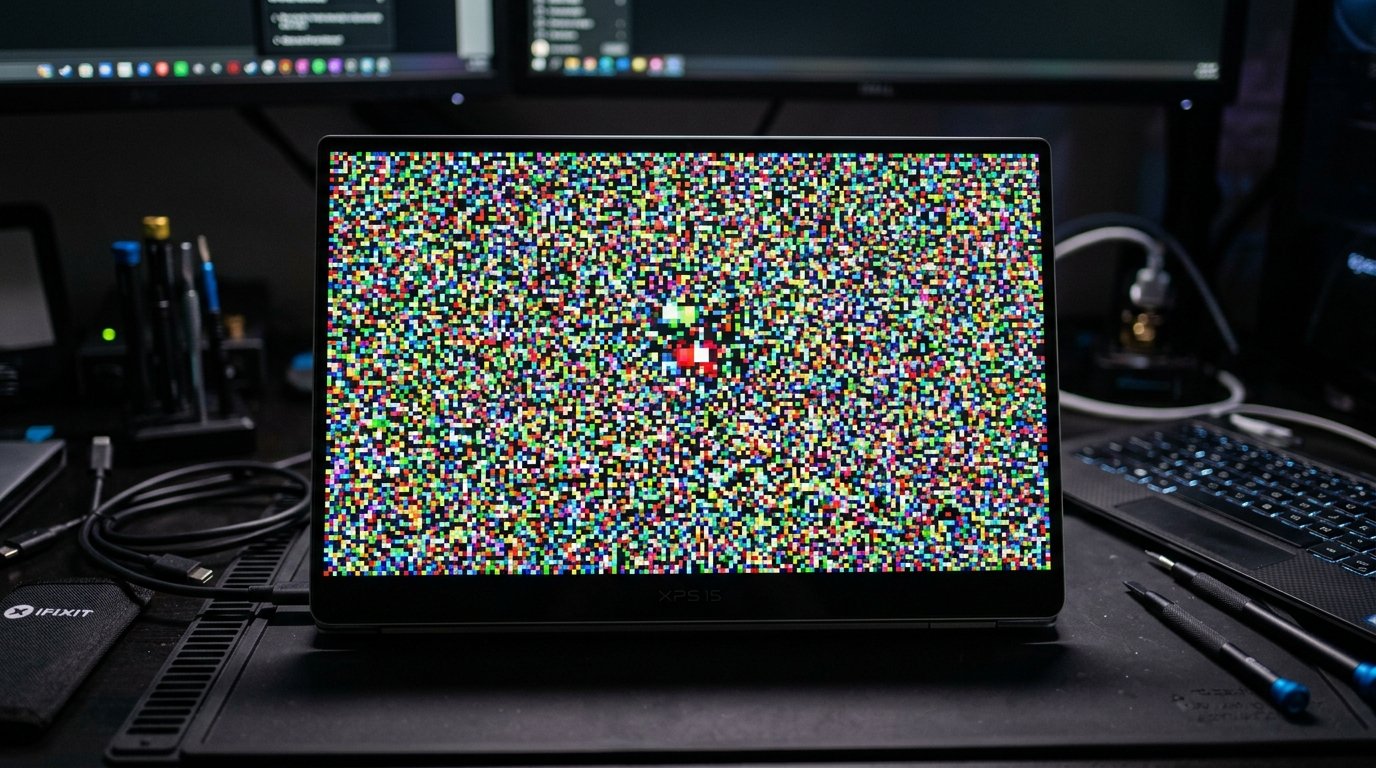
Stuck Pixel Test & Fixer
Detect pixels stuck on static colors and run high-frequency RGB noise stimulation to revive subpixels.
Fix Stuck Pixels →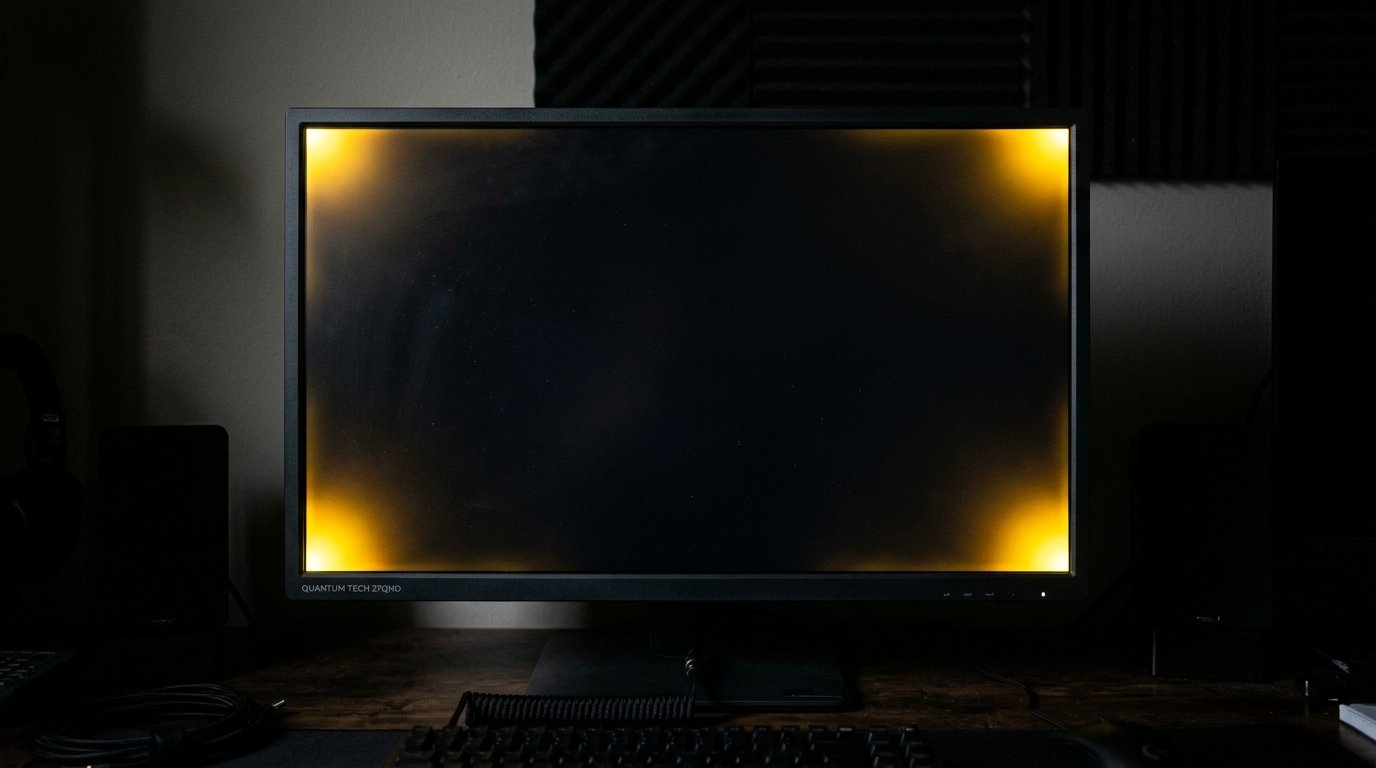
Backlight Bleed & IPS Glow
Fullscreen pure black tests to spot edge light leakage vs IPS viewing-angle glow vs OLED uniformity.
Test Backlight Bleed →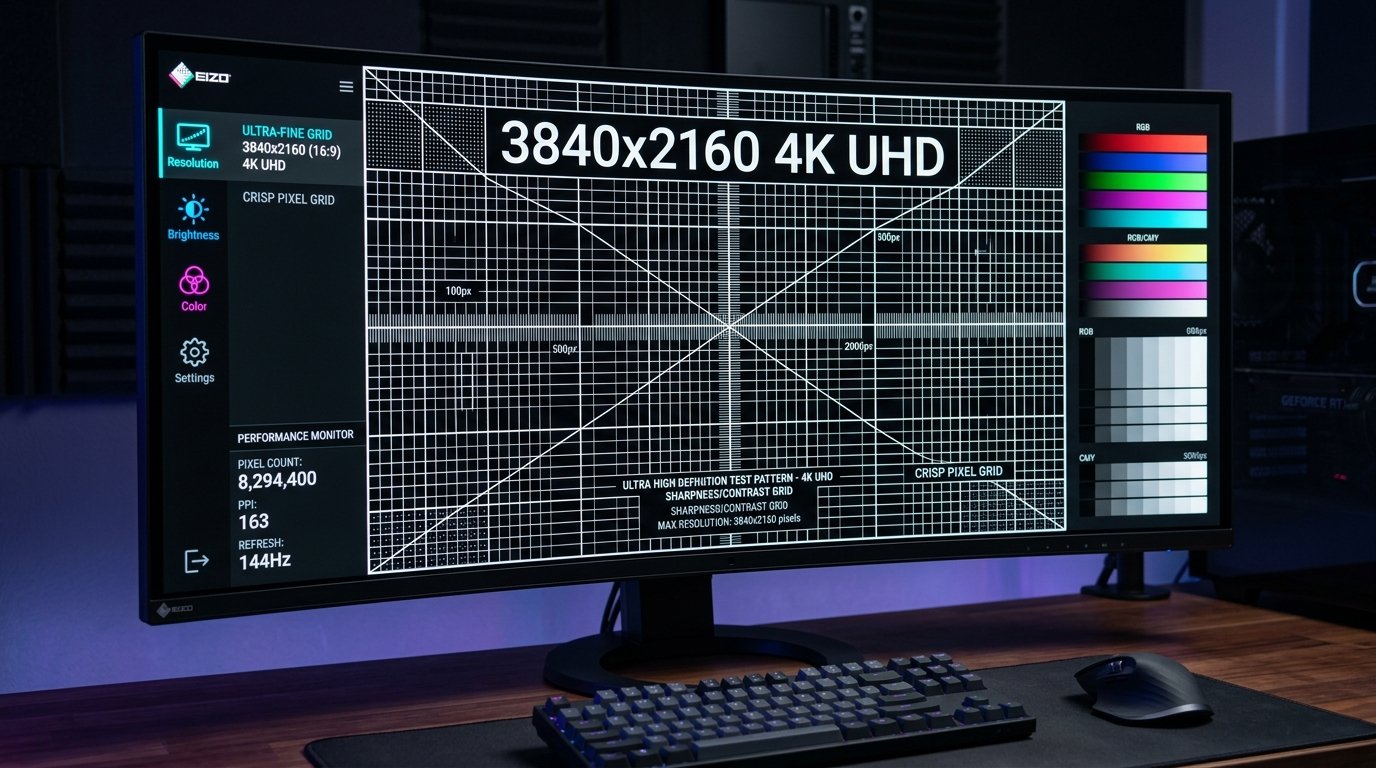
Screen Resolution & Scaling
Verify reported native screen resolution, viewport size, Device Pixel Ratio (DPR), and OS scaling factors.
Check Resolution →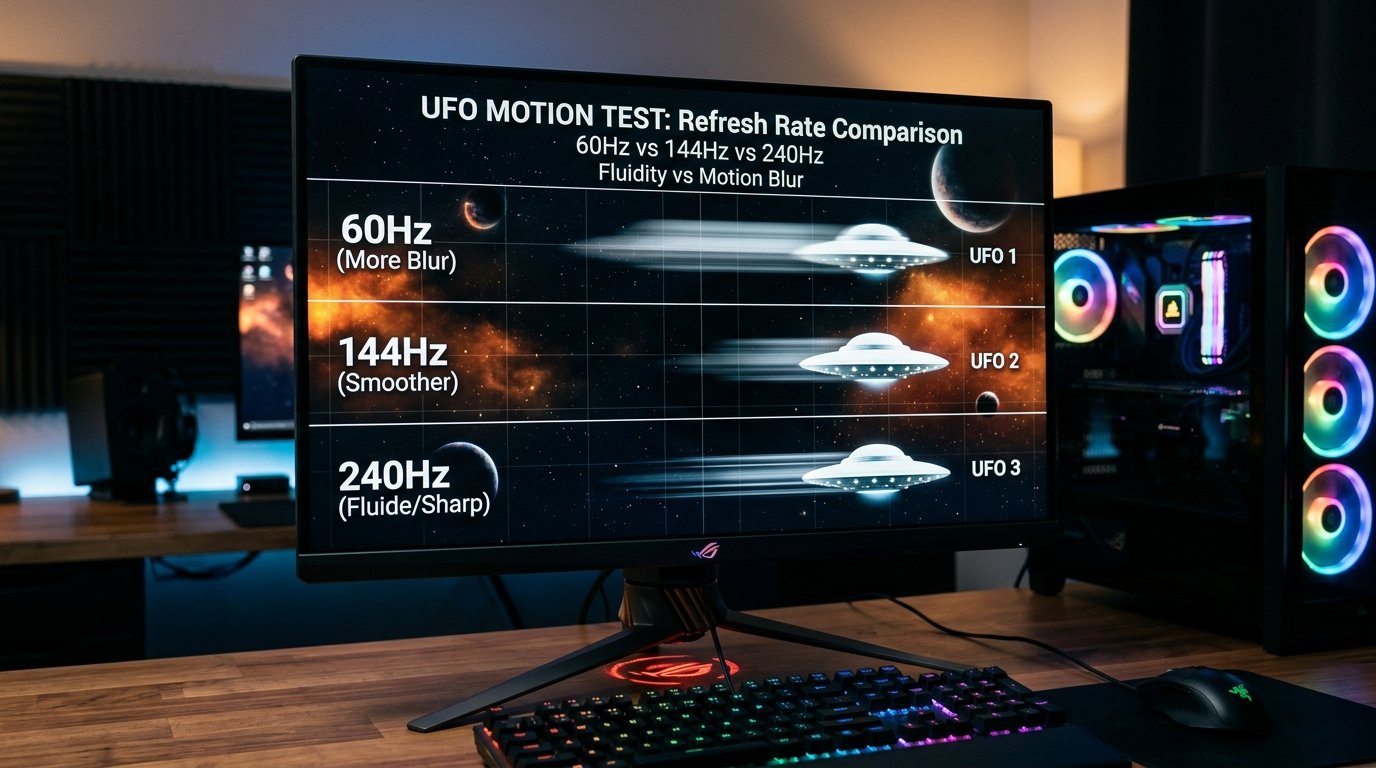
Refresh Rate (Hz) & Motion
Estimate display refresh rate (60Hz, 120Hz, 144Hz, 240Hz, 360Hz+) with frame timing analysis.
Measure Refresh Rate →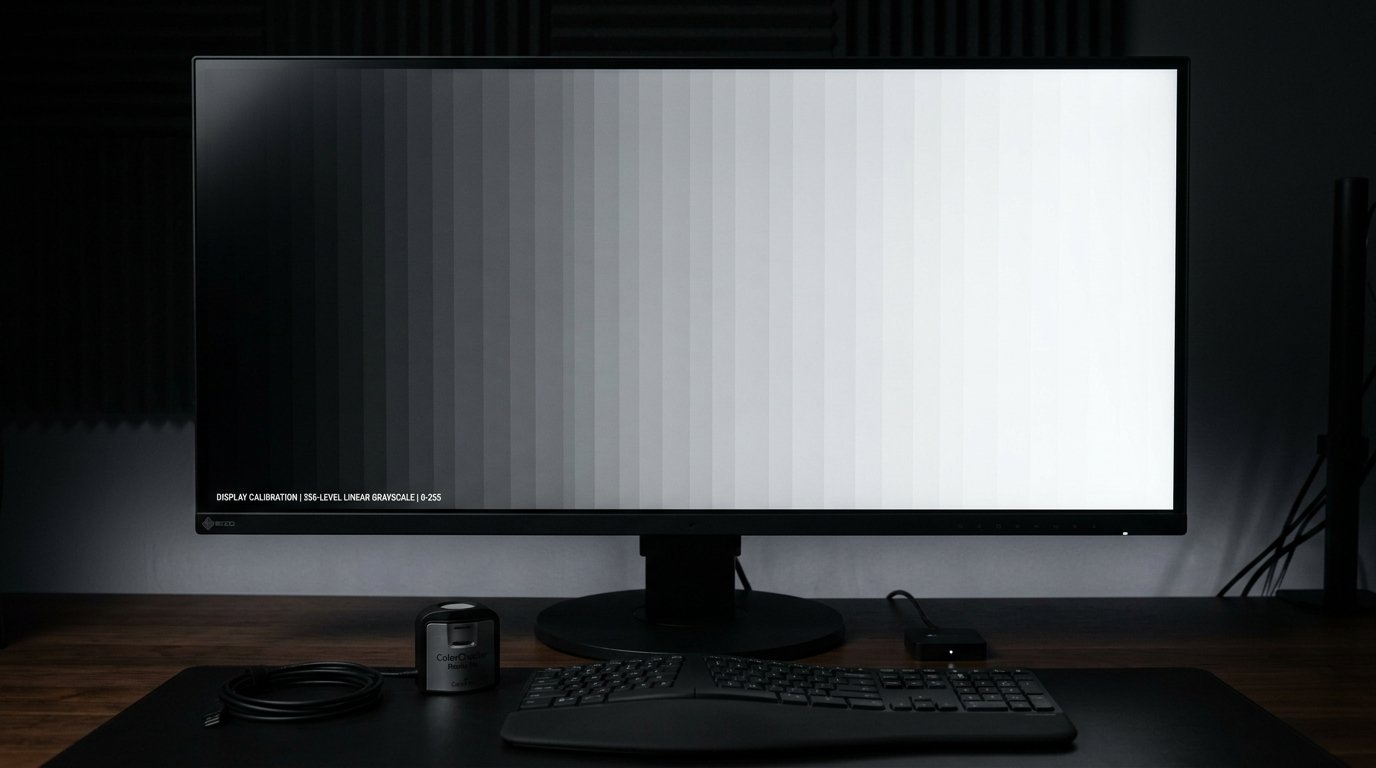
Grayscale Gradient Test
Inspect 256-level black-to-white transitions, color banding, shadow crush, and gamma stepping.
Test Grayscale →Complete Screen Test
Step-by-step diagnostic workflow checking pixels, backlight bleed, gradient banding, resolution, and refresh rate.
Run Complete Screen Test →Dead Pixel Troubleshooting & Guides
In-depth guides on screen technology, manufacturer pixel warranties, and troubleshooting techniques.
What Causes a Dead Pixel? →
Explore the physical, electrical, and thermal factors that cause subpixel transistors to fail during manufacturing or daily use.
Read Guide →How to Fix a Stuck Pixel →
Step-by-step instructions on using software noise boxes, rapid RGB color cycles, and gentle pressure methods to unstick pixels.
Read Guide →Manufacturer Dead Pixel Warranties →
Understand ISO 9241-307 class guidelines and check return policies from Dell, LG, ASUS, Samsung, and Apple.
Read Guide →Screen Inspection Checklist →
Printable 9-point display checklist to verify any new or secondhand monitor before your purchase return window expires.
Read Guide →Frequently Asked Questions
Common questions regarding dead pixels, stuck subpixels, screen testing methods, fixability, and return policies.
A dead pixel is a pixel or subpixel that does not respond normally and remains dark regardless of the displayed color.
A stuck pixel is a pixel or subpixel that remains fixed at one or more colors (such as Red, Green, or Blue) instead of changing normally with the image.
A hot pixel is a pixel that remains unusually bright, often appearing as a white or brightly colored point against darker backgrounds.
Clean your screen, open our free Dead Pixel Test in fullscreen mode, and cycle through solid backgrounds including white, black, red, green, blue, and yellow to visually inspect the display.
Yes. Our dead pixel test runs directly inside any modern web browser on Windows, macOS, Linux, and ChromeOS without installing additional software.
Yes. You can open DeadPixelTests.com via your Smart TV built-in browser or connect a computer, laptop, or streaming device via HDMI to run fullscreen color patterns.
Yes. Open the test on Safari on iOS or Chrome on Android and tap to cycle through solid colors in fullscreen to check smartphones and tablets for pixel defects.
A genuinely failed pixel is usually a hardware problem and software methods cannot reliably restore it. Stuck pixels may sometimes respond to pixel-refresh techniques, but results are not guaranteed.
Some stuck pixels may respond to rapid RGB color-cycling tools or software stimulators, although recovery is not guaranteed.
A single dead pixel does not spread to neighboring pixels because each transistor operates independently. Additional defects only appear if there is underlying physical, thermal, or electrical damage to the panel.
Short display tests using solid colors are completely safe for modern LCD, LED, IPS, VA, and OLED displays. Avoid leaving bright static test screens running for extended periods on OLED panels.
No. The entire diagnostic suite runs in your web browser with zero software installations, downloads, or user signups.
A thorough visual inspection across all primary solid colors takes approximately one to two minutes.
Yes. Surface dust or lint on the outer glass can resemble a dead pixel. Viewing the spot from different angles helps distinguish surface particles from internal panel defects.
Yes. Return and dead-pixel policies vary by retailer, country, manufacturer, and display model. Check the seller's return policy and the manufacturer's pixel warranty before requesting a replacement.
Latest Display & Calibration Articles
Read our expert guides on display calibration, panel technology, and hardware troubleshooting.
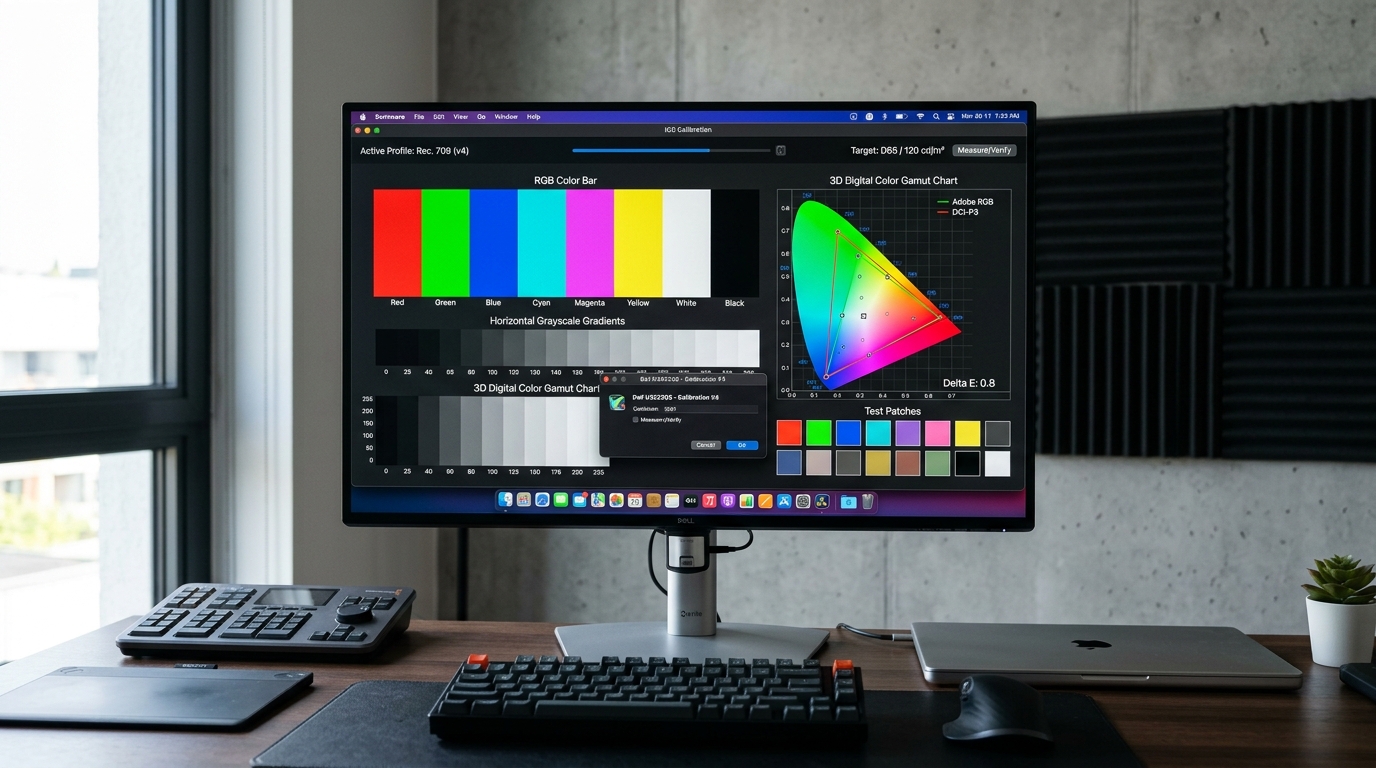
How to Fix Monitor Color Profiles (ICC Profiles) in Windows 11 & macOS
Fix incorrect monitor colors by managing ICC profiles in Windows 11 and macOS, including HDR, Night Light, ColorSync, and calibration settings.
Read Full Guide →How to Fix Color Banding & Bad Color Accuracy on Any Display
Fix color banding, washed-out shadows, and inaccurate colors with step-by-step GPU settings (NVIDIA, AMD, Intel) and calibration tips.
Read Full Guide →
QD-OLED vs WOLED: Which Panel Type Is Best for Gaming & Work?
Compare color volume, highlight brightness, text clarity, and raised blacks across modern OLED panel types.
Read Full Guide →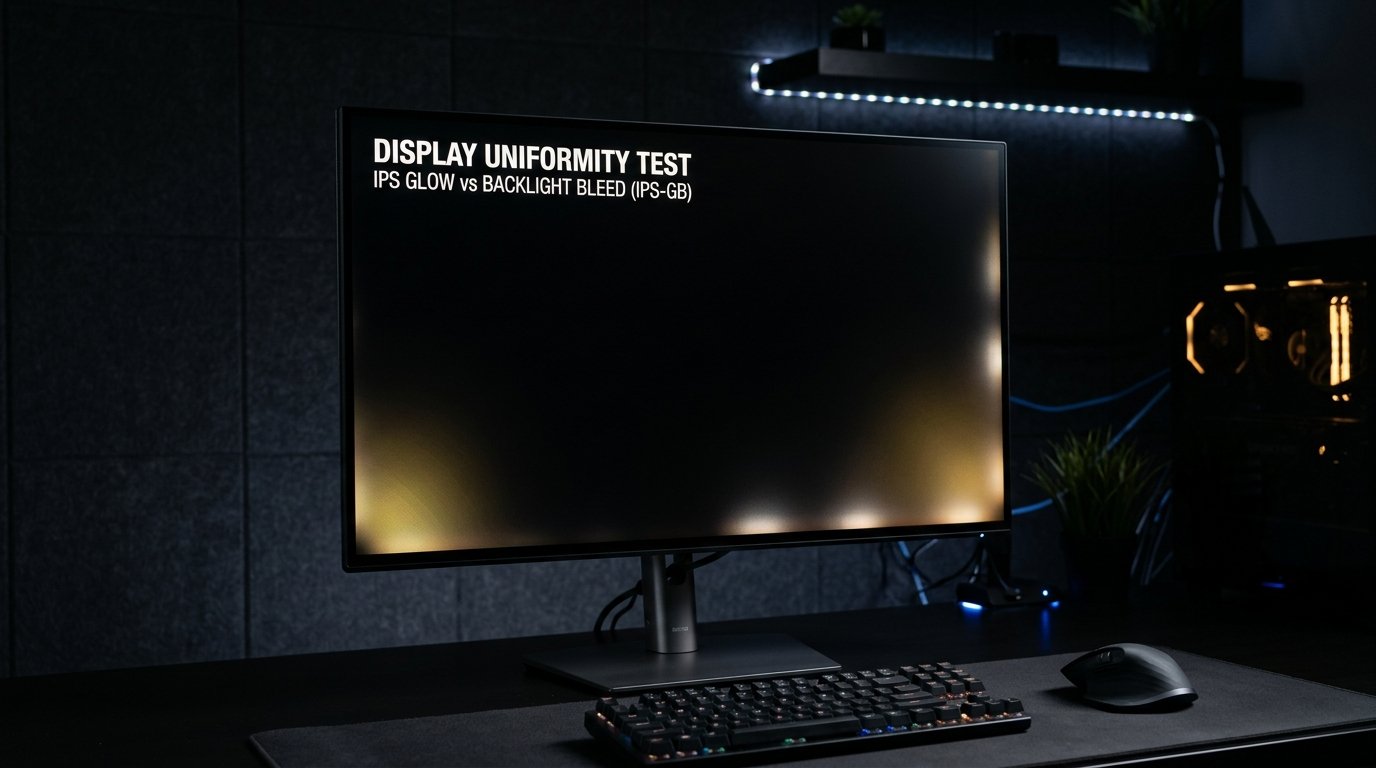
IPS Glow vs Backlight Bleed: What’s the Difference?
Learn how to differentiate normal IPS viewing-angle glow from manufacturing edge backlight bleed defects.
Read Full Guide →